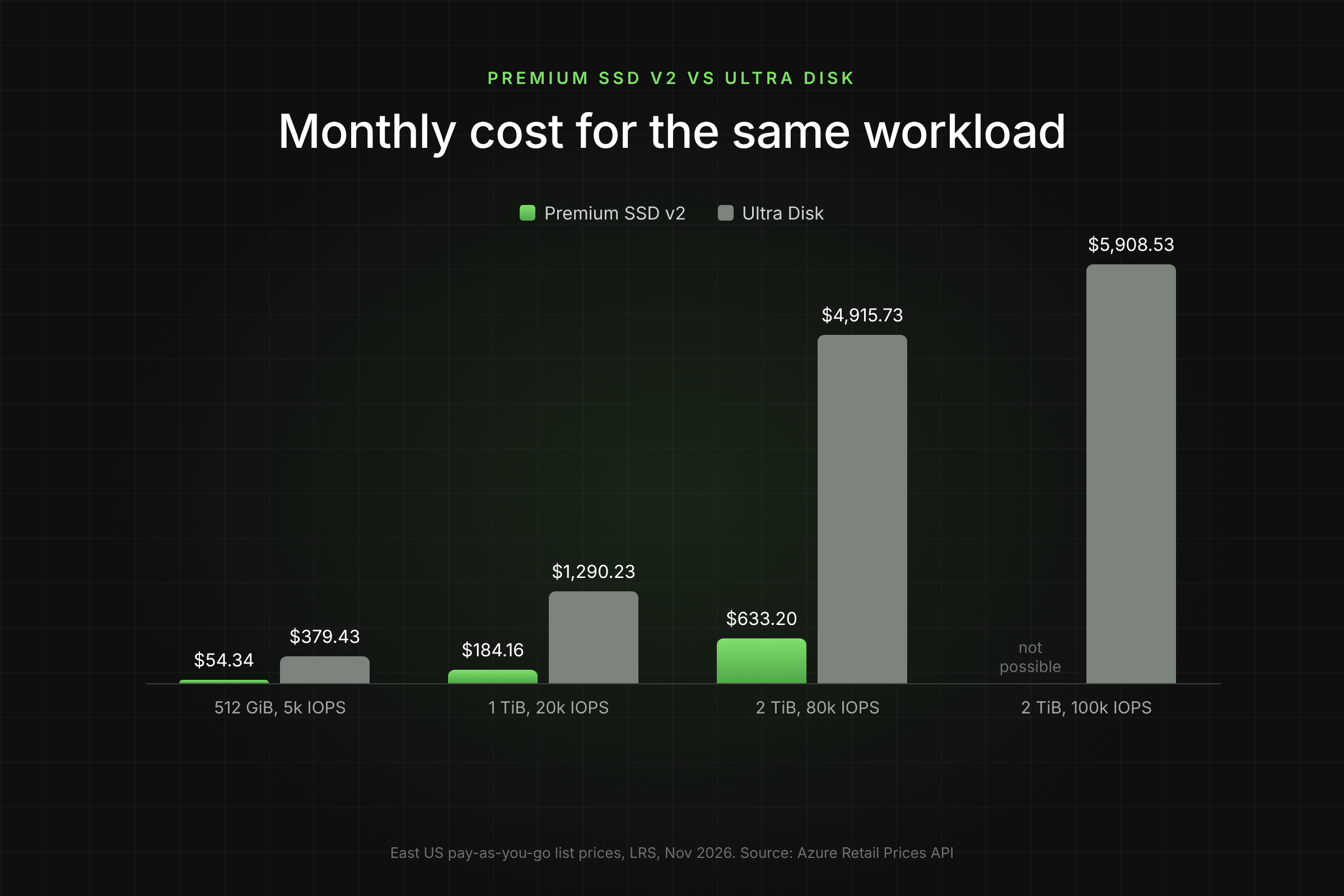
Premium SSD v2 and Ultra Disk both let you set capacity, IOPS and throughput separately. On paper they look like two versions of the same product. On the bill, they are not. For the same 1 TiB disk at 20,000 IOPS, Ultra Disk costs about seven times more in East US.
Key Takeaways
- Choose Premium SSD v2 for almost every high-performance data disk up to 80,000 IOPS and 2,000 MB/s. It includes 3,000 IOPS and 125 MB/s free with every disk.
- Choose Ultra Disk only when one disk needs more than 80,000 IOPS or 2,000 MB/s. Ultra goes to 400,000 IOPS and 10,000 MB/s.
- Both run on Direct Drive, Azure's block storage architecture where the host sends I/O straight to storage servers over RDMA. The difference is in the limits, not the I/O path.
- Neither can be an OS disk or use host caching. Both allow 4 performance changes per 24 hours with no downtime.
What is the Difference between Premium SSD v2 and Ultra Disk?
Premium SSD v2 vs Ultra Disk comes down to ceiling and price. Both are Azure managed disks where you provision capacity, IOPS and throughput separately. Ultra Disk has a much higher performance ceiling. Premium SSD v2 is much cheaper at everything below that ceiling.
Premium SSD v2 is a general-purpose, high-performance block disk for production databases and analytics. Microsoft describes it as designed for submillisecond latency. Every disk includes 3,000 IOPS and 125 MB/s at no extra cost.
Ultra Disk is Azure's top-tier block disk for the most I/O-intensive workloads, such as SAP HANA and top-tier databases. Microsoft describes it as delivering "consistently low submillisecond latency." You pay for every provisioned IOPS and MB/s, with no free baseline.
Both differ from Premium SSD (v1), where performance is tied to a fixed size tier such as P30. For how that model bills, see how Azure managed disk billing works.

How are Premium SSD v2 and Ultra Disk Built?
Both disks run on Direct Drive, the block storage architecture Microsoft built for Ultra Disk (launched in 2019) and later used for Premium SSD v2 (2022). Microsoft walked through its design at SNIA's Storage Developer Conference in 2022. It is a different I/O path from the one Premium SSD (v1) uses, and that path is what makes submillisecond latency possible on both.
What does the I/O path look like?
Host client. A kernel-mode Virtual Disk Client on the Azure host sends each read and write straight to the storage servers that hold that part of the disk. Premium SSD (v1) traffic instead goes through the user-mode Azure Blob stack: load balancers, front-end servers and partition servers.
Transport. Most disk traffic runs over RDMA (SMB Direct), using Direct Drive's own protocol, DDX. RDMA moves data between machines without going through the full host network stack.
Data layout. Each disk is split into fixed-size slices. Every slice is stored by a replica set of Block Storage Service (BSS) servers placed in different fault domains, with a Change Coordinator Service (CCS) managing the set.
Write path. A write completes once a quorum of BSS replicas (N of M) has accepted it, rather than waiting on every copy.
Media. The storage servers keep SSDs behind a write-back cache built on storage class memory.
Control plane. A Paxos-based metadata service tracks where every slice lives, and a gateway service sits alongside it. Neither sits in the read and write path.
Why does Ultra Disk reach higher limits?
Microsoft hasn't published a component-level reason why Ultra Disk's ceilings (400,000 IOPS and 10,000 MB/s) are five times Premium SSD v2's. What is public is that both share the Direct Drive design, and Microsoft positions Ultra for consistent latency at the very top end. Treat the gap as a product limit, not a different kind of hardware you can reason about.
What this means when you design
No host cache to lean on. Neither disk supports host caching, so every I/O counts against the VM's uncached IOPS and MB/s limits. Check the VM size before you buy disk performance.
Latency is not the deciding factor below 80,000 IOPS. Both disks use the same path, so choose on limits and price.
Sources: Direct Drive talk, SNIA SDC 2022; Datacenter Knowledge, 2019.
How do The Limits Compare?
Ultra Disk wins on every maximum. Premium SSD v2 wins on minimum size and free baseline performance.
How does Size Cap IOPS on Ultra Disk?
On Ultra Disk, the size you provision caps the IOPS and throughput you can set. A 4 GiB Ultra Disk tops out at 1,200 IOPS. You need at least 512 GiB to set more than 76,800 IOPS, and 2 TiB or more to reach the full 400,000.
Premium SSD v2 scales faster per GiB at the bottom end. Its IOPS limit rises by 500 per GiB beyond 6 GiB, so even a small disk can reach its 80,000 IOPS maximum.
How does Pricing Compare?
Both disks bill three meters: capacity, IOPS and throughput. The difference is the rate per unit and the free baseline on Premium SSD v2.
The IOPS rate is the big gap. Each provisioned IOPS above the baseline costs about 10 times more on Ultra Disk ($0.04964 vs $0.00511). Throughput is about 9 times more. Capacity is about 1.5 times more.

Worked examples: the same workload on both
Each example shows the arithmetic so you can rerun it for your region. Formula:
monthly cost = GiB × capacity rate + billable IOPS × IOPS rate + billable MB/s × throughput rate
For Premium SSD v2, billable IOPS = provisioned IOPS − 3,000 and billable MB/s = provisioned MB/s − 125.
Example 1:
A 512 GiB database disk at 5,000 IOPS and 200 MB/s
- Premium SSD v2: 512 × $0.0803 = $41.11; 2,000 × $0.00511 = $10.22; 75 × $0.04015 = $3.01. Total $54.34.
- Ultra Disk: 512 × $0.1197 = $61.30; 5,000 × $0.04964 = $248.20; 200 × $0.34967 = $69.93. Total $379.43.
Example 2:
A 1 TiB disk at 20,000 IOPS and 500 MB/s
- Premium SSD v2: 1,024 × $0.0803 = $82.23; 17,000 × $0.00511 = $86.87; 375 × $0.04015 = $15.06. Total $184.16.
- Ultra Disk: 1,024 × $0.1197 = $122.59; 20,000 × $0.04964 = $992.80; 500 × $0.34967 = $174.84. Total $1,290.23.
Example 3:
A 2 TiB disk at 100,000 IOPS and 2,000 MB/s
- Premium SSD v2: not possible. One disk tops out at 80,000 IOPS.
- Ultra Disk: $245.19 + (100,000 × $0.04964 = $4,964.00) + $699.34. Total $5,908.53.
Which One Should You Choose?
Use Premium SSD v2 unless one disk must exceed its limits. That single rule covers most production databases.
Choose Premium SSD v2 when:
- The disk needs 80,000 IOPS or less and 2,000 MB/s or less.
- You want to tune IOPS to the workload instead of buying a fixed P-tier.
- Cost per performance matters, which it always does at fleet scale.
- The workload is SQL Server, PostgreSQL, MySQL, Oracle, MongoDB or Elasticsearch data and log disks with normal production loads.
Choose Ultra Disk when:
- One disk must exceed 80,000 IOPS or 2,000 MB/s, and you cannot stripe several Premium SSD v2 disks to get there.
- The vendor certifies only Ultra Disk for your configuration, which is common for some SAP HANA deployments.
- You need the most consistent latency Azure offers and the budget is secondary.
What about striping Premium SSD v2 Disks?
Striping two or more Premium SSD v2 disks in Storage Spaces or LVM can pass the 80,000 IOPS single-disk limit at a lower price than Ultra. Two 1 TiB v2 disks at 50,000 IOPS each give 100,000 IOPS for about $645 a month: 2 × (1,024 × $0.0803 + 47,000 × $0.00511) = 2 × $322.40. That is well under the $5,908.53 for one Ultra disk in Example 3, before throughput.
The trade-offs are real. Striping adds operational complexity and multiplies failure points. The VM's uncached IOPS limit also still applies. Check the VM size before you plan any layout above 80,000 IOPS.
How do You Create and Tune Each Disk?
Both disks are created as data disks, set with IOPS and throughput at creation, and changed live afterwards.
Create a Premium SSD v2 Disk
az disk create -g <resource-group> -n <disk-name> \
--size-gb 1024 --sku PremiumV2_LRS --zone 1 \
--disk-iops-read-write 20000 --disk-mbps-read-write 500
Create an Ultra Disk
az disk create -g <resource-group> -n <disk-name> \
--size-gb 1024 --sku UltraSSD_LRS
--zone 1 \ --disk-iops-read-write 20000 --disk-mbps-read-write 500
The VM must have Ultra Disk compatibility enabled before you attach one:
az vm update -g <resource-group> -n <vm-name> --ultra-ssd-enabled true
Change Performance Later
az disk update -g <resource-group> -n <disk-name> \
--disk-iops-read-write 30000 --disk-mbps-read-write 750
Verify
az disk show -g <resource-group> -n <disk-name> \
--query "{sku:sku.name, iops:diskIOPSReadWrite,
mbps:diskMBpsReadWrite}" -o table
Then confirm in Azure Monitor that Data Disk IOPS Consumed Percentage dropped under the same load. On Ultra Disk, allow up to an hour for a change to take effect before you judge it.
What are the Gotchas?
- Neither can be an OS disk. Keep the OS on Premium SSD (v1) or Standard SSD.
- No host caching on either. All I/O counts against the VM's uncached IOPS and MB/s cap. If the VM is capped, extra disk IOPS buy nothing. See how to diagnose Premium SSD v2 latency.
- 4 changes per 24 hours. Both disks limit performance changes to 4 per day. Plan peak adjustments, don't script them every hour.
- Ultra Disk reservation charge. Enabling Ultra compatibility on a VM with no Ultra Disk attached is billed at $0.006 per vCPU-hour in East US. A 16 vCPU VM left that way costs about $70 a month for nothing (16 × $0.006 × 730).
- Ultra Disk redundancy. Ultra Disk supports LRS only. Microsoft states it doesn't support zone-redundant storage or availability sets.
- Zones. In most regions with availability zones, both disks attach only to zonal VMs. Check regional support before you design.
- Overprovisioned IOPS are silent. Neither disk alerts you when you pay for 20,000 IOPS and use 4,000. That gap is the most common waste we see on both.
How do you Migrate Safely?
You can't change an existing disk's SKU in place to Ultra Disk, so plan migrations as a copy. The safe path is the same in both directions.
- Measure first. Pull 14 to 30 days of peak IOPS and MB/s at one-minute maximum. Size the new disk to the peak plus headroom, not to the old disk's tier.
- Snapshot. Take an incremental snapshot of the source disk and keep it until the new disk has run cleanly through at least one peak cycle.
- Create the target disk from the snapshot or by copying data in-guest, in the same zone as the VM.
- Cut over in a maintenance window: stop the application, attach the new disk, update mount points or drive letters, start the application.
- Verify on metrics and on the bill. Latency and consumed percentages should match or beat the baseline. In Cost Management, the old disk's meter should stop once you delete it.
- Roll back by reattaching the original disk if anything fails. Delete the old disk only after the new one has been stable.
For the cost side of a disk-type change, use the break-even method in How to Estimate Break-Even Before Changing an Azure Disk Type.
How do You Stop Paying for IOPS You Don't Use?
Provisioned performance only saves money if it tracks the workload. Most teams set IOPS for the worst day and never revisit it.
Lucidity's platform reads disk utilization across your subscriptions and flags disks whose provisioned capacity or performance sits far above actual use. Want to see your gap? Switch on Free Insights for a read-only report of disk utilization and savings across your Azure subscriptions.
Frequently Asked Questions
Is Ultra Disk faster than Premium SSD v2?
Ultra Disk has higher maximums: 400,000 IOPS and 10,000 MB/s per disk against 80,000 and 2,000. Below those limits, both deliver submillisecond latency according to Microsoft. Ultra is described as more consistent.
Can I convert Premium SSD v2 to Ultra Disk?
Not in place. Create an Ultra Disk from a snapshot or copy the data, then swap the disks during a maintenance window.
Does Premium SSD v2 charge for the first 3,000 IOPS?
No. Every Premium SSD v2 disk includes 3,000 IOPS and 125 MB/s. You pay only for performance above that, plus capacity.
Can I use Ultra Disk as an OS disk?
No. Neither Ultra Disk nor Premium SSD v2 can be an OS disk.
Why am I billed for Ultra Disk with no Ultra Disk attached?
Ultra Disk compatibility is enabled on the VM. Azure bills a reservation charge per vCPU until you disable it with az vm update --ultra-ssd-enabled false while the VM is deallocated, or attach an Ultra Disk.
Table of Contents
Sign Up