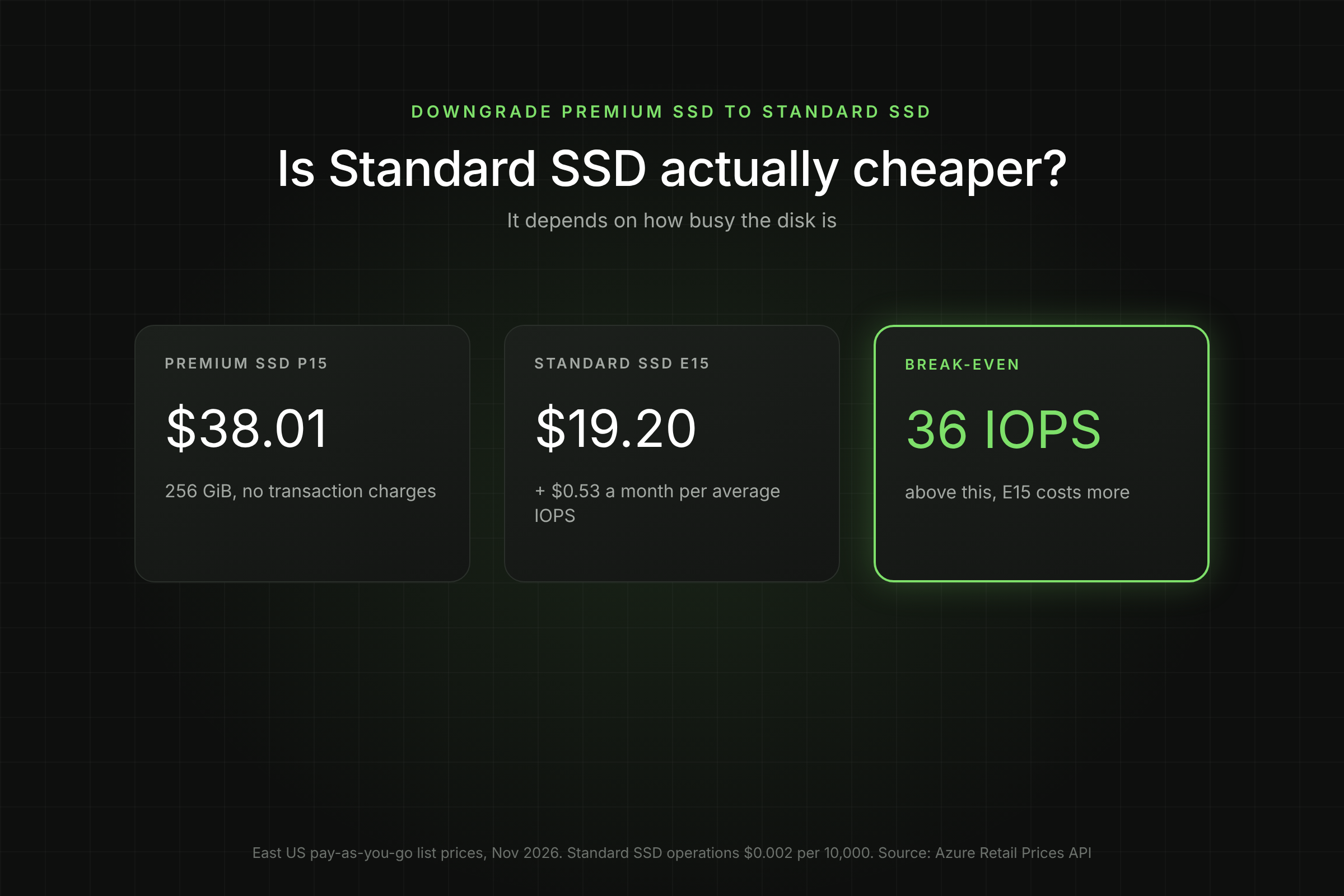
Standard SSD costs about half of Premium SSD per tier, so downgrading looks like an easy saving. It is, for the right disks. For the wrong ones, Standard SSD's per-transaction billing makes the disk cost more than before, and the 500 IOPS ceiling slows the workload down.
Key Takeaways
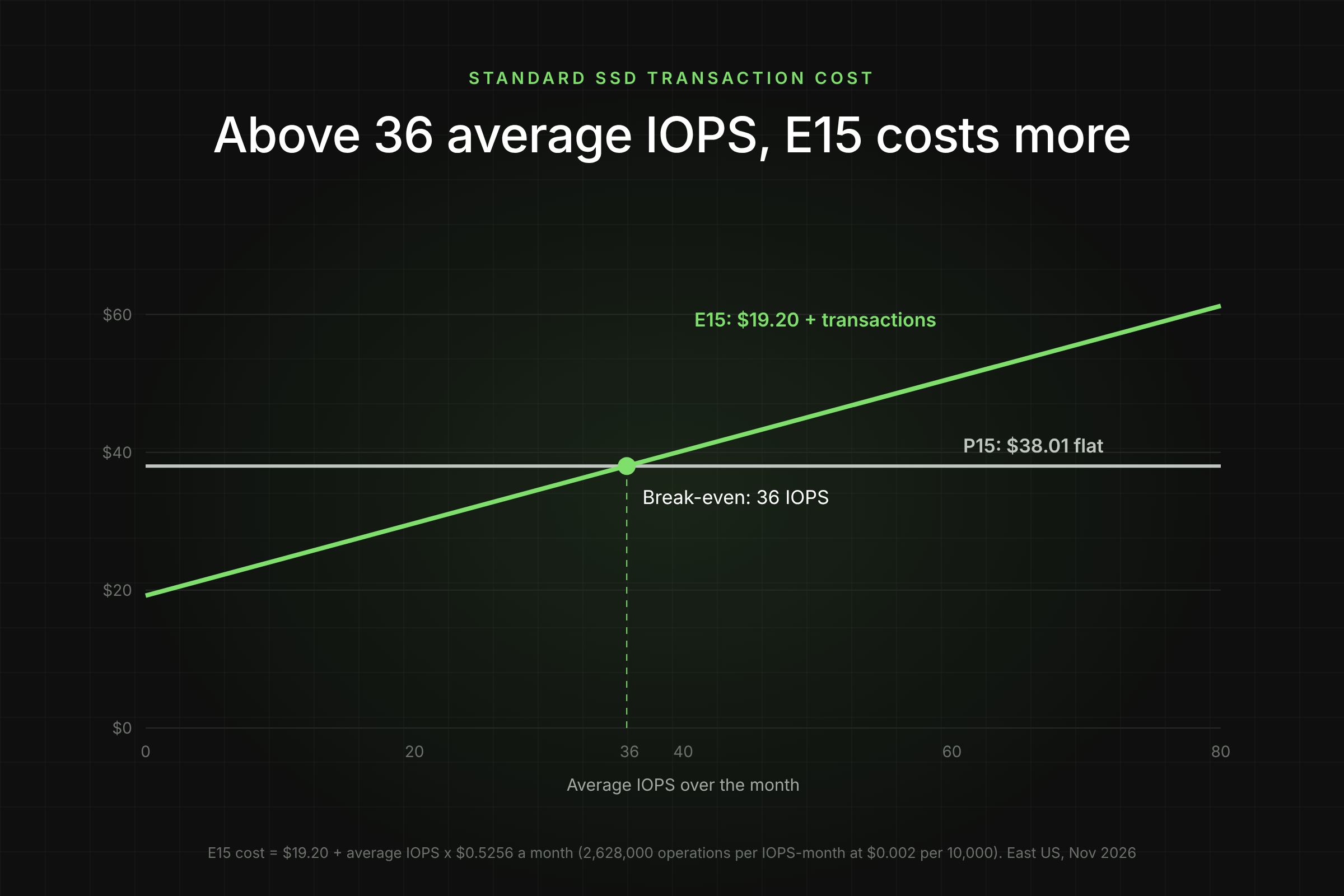
- A downgrade only saves money below a break-even average IOPS: about 36 IOPS for a P15 to E15, and about 111 IOPS for a P30 to E30 (East US, Nov 2026).
- Standard SSD tiers up to E30 cap at 500 IOPS and 100 MB/s. If peak IOPS is above that for more than a short burst, do not downgrade.
- The change needs a VM deallocation, can run only twice per day per disk, and drops the single-instance VM SLA from 99.9% to 99.5%.
- For data disks, check Premium SSD v2 first: a 256 GiB v2 disk costs $20.56 a month with 3,000 IOPS included.
When should you downgrade Premium SSD to Standard SSD?
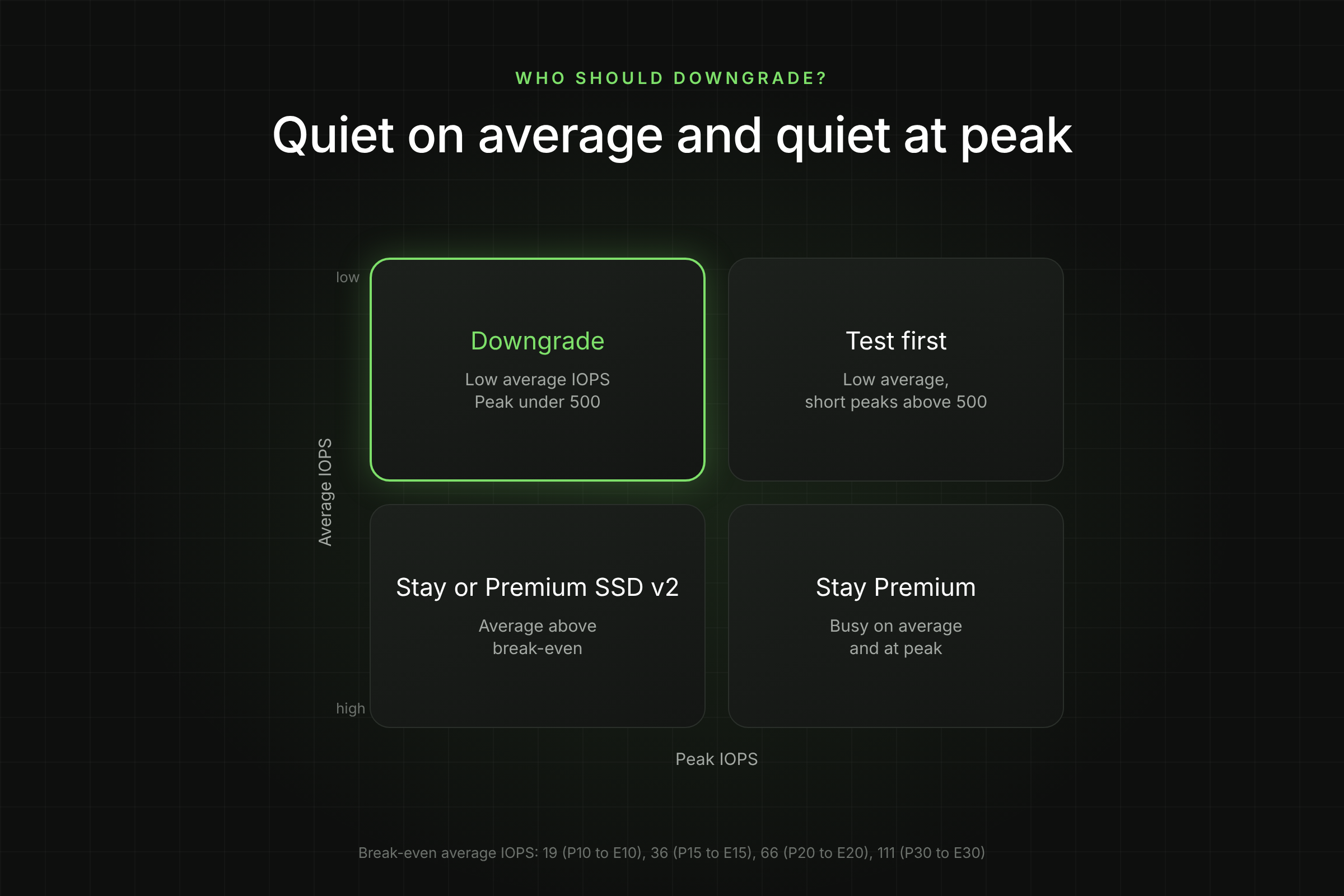
Downgrade Premium SSD to Standard SSD when a disk's average IOPS is below the break-even for its tier, its peak IOPS and throughput fit inside Standard SSD limits, and the workload tolerates a lower SLA. All three conditions must hold.
Good candidates are disks that sit mostly idle:
- OS disks on application servers that log little and read the OS image at boot
- Dev, test and staging VMs that run office hours only
- Jump boxes, build agents with small caches, and low-traffic internal tools
- Data disks holding archives, exports or software repositories read a few times a day
Poor candidates are anything latency-sensitive or busy: database data and log disks, message queues, search indexes and production workloads covered by a 99.9% availability commitment. These belong on Premium SSD or Premium SSD v2.
The common mistake is to downgrade by disk size or by environment tag. A "dev" database under a nightly load test can run hundreds of IOPS for hours, and a "prod" OS disk can sit at 5 IOPS all month. Decide by measured I/O, not by labels.
At what IOPS does the downgrade stop saving money?
A downgrade stops saving money when Standard SSD transaction charges reach the capacity saving. Premium SSD has no transaction charge; Standard SSD bills every I/O at $0.002 per 10,000 operations in East US.
One average IOPS for a month is 1 x 3,600 seconds x 730 hours = 2,628,000 operations, or 262.8 billing units of 10,000. At $0.002 per unit, that is $0.5256 a month per average IOPS. Divide each tier's capacity saving by $0.5256 to get the break-even:
| From | To | Premium price | Standard SSD price | Capacity saving | Break-even average IOPS | ||
|---|---|---|---|---|---|---|---|
| P10 (128 GiB) | E10 | $19.71 | $9.60 |
| Size | Premium SSD IOPS / MB/s | Premium burst IOPS / MB/s | Microsoft SLA for Online Services). VMs in an availability set or across zones have their own SLA terms, so check which applies to you. Standard SSD supports host caching, so read-heavy disks can keep ReadOnly caching after the change.How do you measure a disk before downgrading?Pull at least 30 days of per-disk IOPS and throughput from Azure Monitor, with both average and maximum. Average sets the transaction bill; maximum tells you whether the disk fits under 500 IOPS and 100 MB/s. vmId=$(az vm show -g $rg -n $vmName --query id -o tsv) Use the "OS Disk Read Operations/Sec" and "OS Disk Write Operations/Sec" metrics for the OS disk, and the "Bytes/Sec" variants for throughput. Then apply the checklist:
Hourly averages hide spikes. If a disk sits close to 500 IOPS at the hourly maximum, pull a 1-minute interval for the busiest day before you decide. To run this check across every subscription at once, switch on Lucidity Free Insights for a read-only report of per-disk IOPS, throughput and downgrade candidates. How do you downgrade Premium SSD to Standard SSD with Azure CLI?You take a snapshot, deallocate the VM, change the disk SKU to StandardSSD_LRS and start the VM. Microsoft notes that conversion requires a VM restart, so schedule it in a maintenance window (Microsoft Learn, convert disk types). Before you start
Steps1. Snapshot the disk as a rollback point. diskId=$(az disk show -g $rg -n $diskName --query id -o tsv) 2. Deallocate the VM. Stopping from inside the guest is not enough; the VM must be deallocated. vmId=$(az disk show -g $rg -n $diskName --query managedBy -o tsv) 3. Change the SKU. Use StandardSSD_ZRS if the disk is zone-redundant today and must stay that way. az disk update -g $rg -n $diskName --sku StandardSSD_LRS 4. Start the VM. az vm start --ids $vmId To convert every disk on a VM, deallocate once and loop az disk update over the OS disk and each data disk before starting it. In the portal: stop the VM, open the disk, select Size + performance, change the type to Standard SSD and select Save. The type change itself is instant; the downtime is the stop and start. 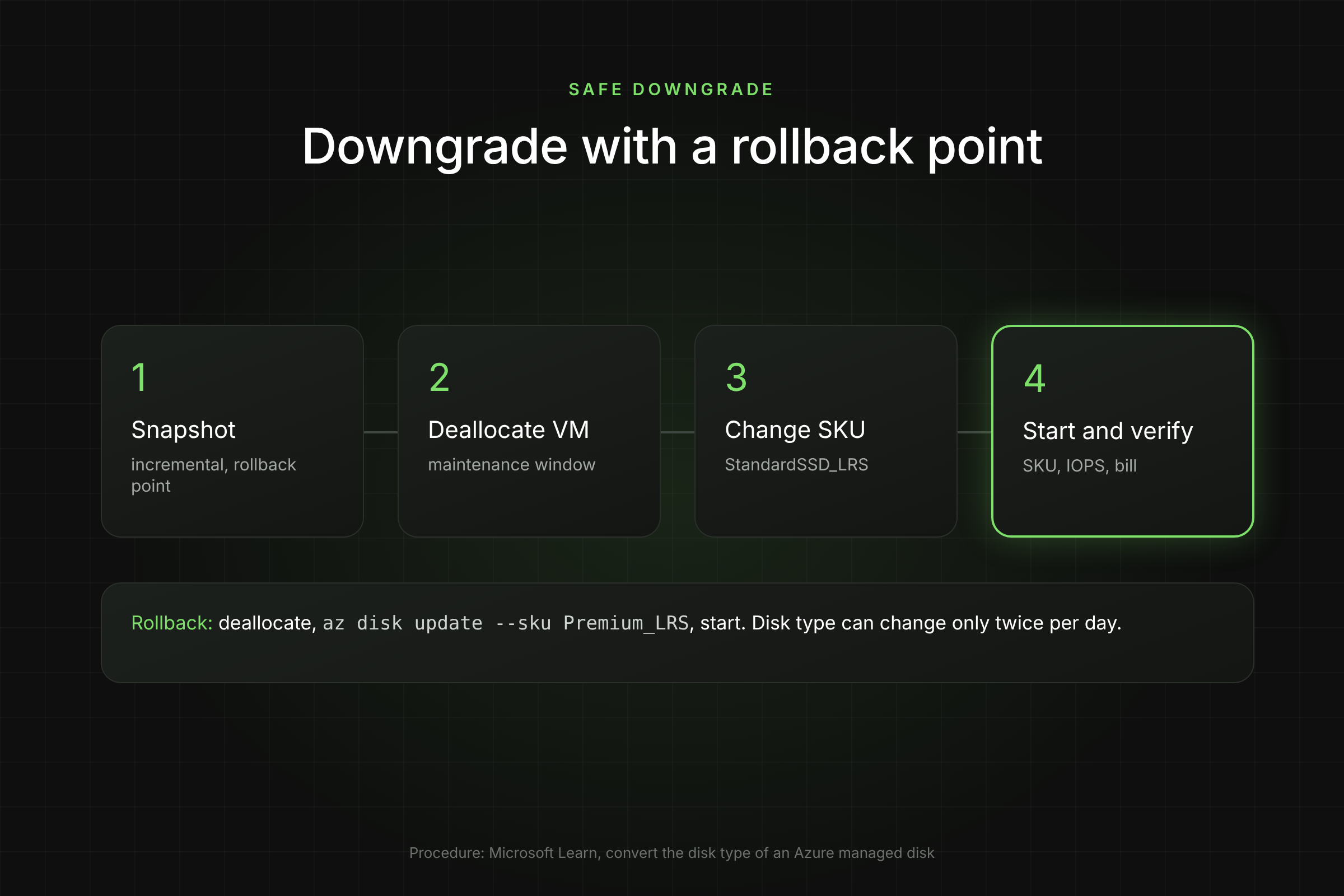 How do you verify and roll back?Verify the SKU, then watch performance for a week and the bill for a full cycle. If either is worse than planned, convert back. az disk show -g $rg -n $diskName --query "{sku:sku.name, tier:tier, size:diskSizeGb}" -o table What to check after the change:
Rollback: deallocate the VM, run az disk update -g $rg -n $diskName --sku Premium_LRS and start it again. The VM size must support Premium storage; it already did if the disk was Premium before. If the disk itself is damaged, create a new disk from the snapshot and swap it in. Delete the snapshot once the month-one check passes. What are the alternatives to a downgrade?A type change is one of three levers. For many data disks, another one saves more with less risk. Premium SSD v2 beats E15 on cost once the disk averages more than about 3 IOPS ($20.56 vs $19.20 plus transactions), and gives six times the IOPS. It cannot be an OS disk, does not support host caching and, in most zonal regions, attaches only to zonal VMs (Microsoft Learn, disk types). For OS disks, Standard SSD remains the main downgrade path. Many Premium disks are also oversized for their data, and the right fix is fewer GiB rather than a cheaper type. Azure cannot shrink a managed disk in place. Lucidity AutoScaler expands and shrinks disks live with no downtime, so you can cut capacity without a migration project. What does a fleet downgrade save?Here is a worked business case a VP can check line by line. East US list prices, Nov 2026. Scenario: 50 Premium SSD P15 OS disks on application servers, each measured at 10 average IOPS and under 400 peak IOPS for 30 days. The same 50 disks at 50 average IOPS would cost $2,274 a month on Standard SSD, $373.50 more than today. The measurement step is what decides whether this is a saving or a loss. Replace the rate, disk count and IOPS with your own numbers; the structure stays the same. Frequently Asked QuestionsCan I downgrade Premium SSD to Standard SSD without downtime?No. Microsoft's procedure deallocates the VM, changes the SKU and starts the VM again. The type change is instant, so downtime is the stop and start time, usually a few minutes. Does downgrading lose data?No. Changing the SKU keeps the disk, its size and its data. Take an incremental snapshot first anyway; it is your rollback if anything else goes wrong in the window. Can I lower the Premium performance tier instead?Only down to the disk's baseline tier. A 256 GiB disk cannot go below P15, so a lower performance tier does not reduce cost for a disk already at baseline. How often can I switch back and forth?Twice per day per disk. Plan the downgrade and a possible rollback in the same window, and avoid converting the same disk on consecutive days while you test. Is Standard HDD a better downgrade target?Only for disks that tolerate the lowest performance class, such as cold archives. The VM SLA drops to 95% for single-instance VMs on Standard HDD, so keep it out of anything users depend on. Table of ContentsSign UpThank you! Your submission has been received! Oops! Something went wrong while submitting the form. Author  Share this post     Related Blogs category cloud Industry  Azure Storage Cost: 2026 Pricing Guide with Worked ExamplesPranshu Mishra • November 13, 2026 category cloud Industry  Azure Disk Bursting: Credit-Based vs On-Demand, and What Each CostsPranshu Mishra • November 12, 2026 category cloud Industry |
|---|