.png)
Welcome back to our two-part series on block storage technologies in Windows!If you missed it, you can read part one here, where we covered the basic concepts behind blockstorage in Windows. In part two, we will be exploring the specific Windows technologies that underpin block storage, their history,design, and key features and functionalities.
Windows implements some technologies to support volumes backed byseveral partitions, and also technologies to pool up disks intoRAID-like configurations.
Logical Disk Manager (LDM)
Logical Disk Manager (LDM) allows users to create “dynamicvolumes” that span multiple partitions and disks, support advancedfeatures like mirroring, and resize without reformatting.
For this, the Windows Operating System distinguishes between abasic disk and a dynamic disk. On a basic disk, partitions arelimited to a single contiguous area of the disk. On a dynamic disk, avolume can combine space from multiple disks or multiple areas on thesame disk.
History
Introduced in Windows 2000, the LDM was designed to provideflexible and advanced disk management beyond the traditional “basicdisk” system, on which volumes are mapped 1:1 to partitions.
Design
LDM builds a top of basic disk partitioning, by introducing smallpartitions of “logical disk metadata” to store LDM configuration.A disk on which LDM is set up is called a “dynamic disk.”
A logical disk metadata partition contains a database stored oneach dynamic disk to track dynamic volumes, including:
- Volume type (simple, spanned, striped, mirrored)
- Disk membership and volume layout (which portions of which disks belong to the volume)
- Volume identifiers and metadata
A filesystem is mounted atop of a dynamic volume, which in turncan be spanned across several physical disks. To a filesystem, adynamic volume appears as one contiguous block of disk space, as itwere in the case of basic volumes. The LDM volume driver ensures theon-fly mapping between dynamic volume “virtual” space and“physical” space on dynamic disks.
Types of Dynamic Volumes
There are several types of dynamic volumes.
The difference between a “basic volume” and a “simplevolume,” which both map to a single disk partition, is that a“simple volume” resides on LDM-configured “dynamic disks,”while a “basic volume” is a volume based on traditional “basicdisk.” Additionally, a “simple volume” has a rarely-usedfeature to span across several non-contiguous partitions on a singledynamic disk.
Windows has a Windows Disk Management tool that allows users toconvert disks to dynamic, and create dynamic volumes on top. WindowsDisk Management hides “logical disk metadata” partitions fromusers, showing only partitions used by LDM to store volume data.
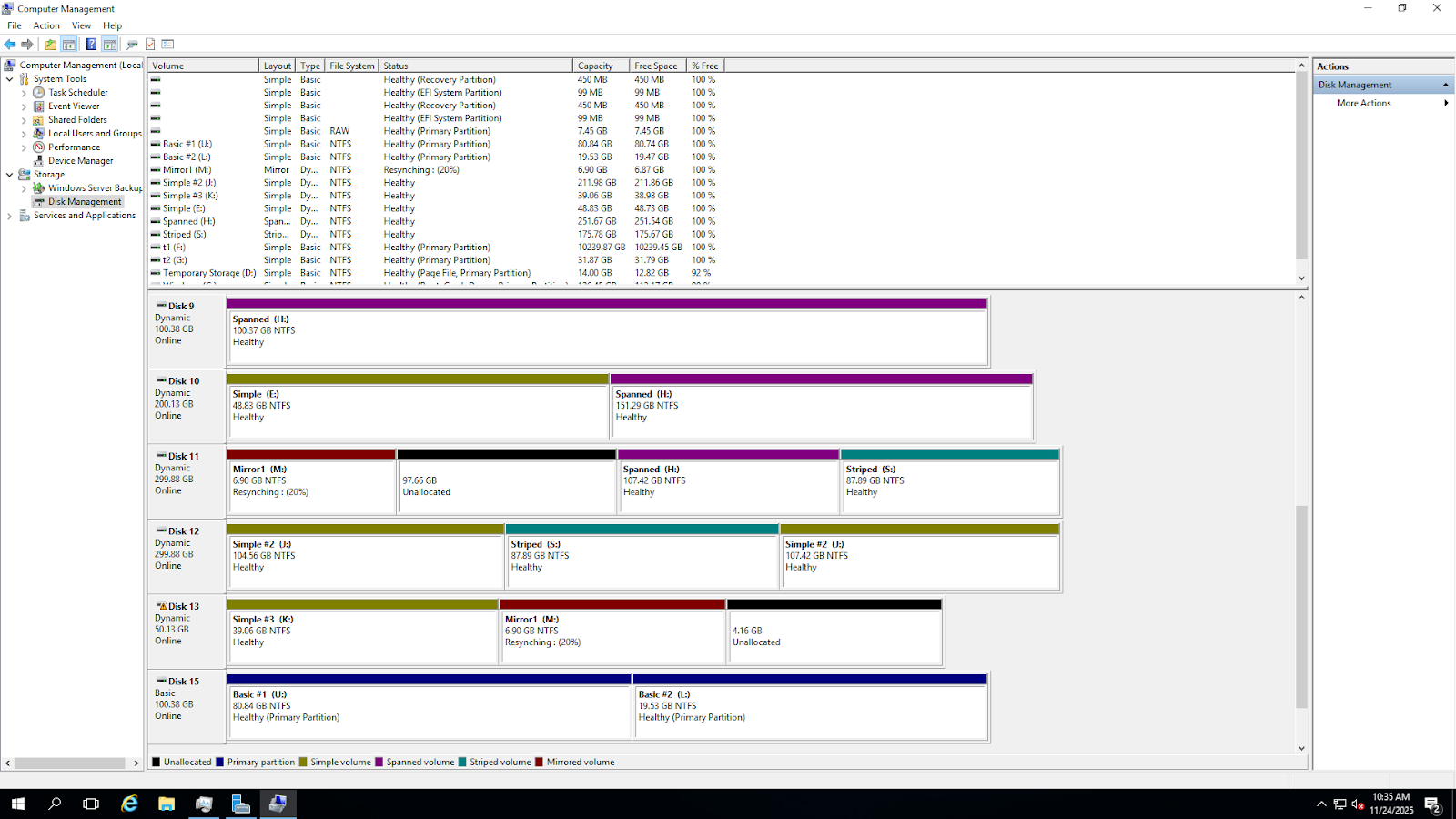
Figure 4. A sample dynamic disks configuration. Simple volumesare yellow, red are mirrors, teal are striped, purple is spanned,black are unallocated spaces, blue is basic volume.
Storage Spaces
Microsoft developed Storage Spaces to provide a flexible,software-defined new generation storage virtualization.
Instead of building volumes atop multiple partitions like LDM,Storage Spaces employs RAID-style technique to pool whole physicaldisks, not partitions, to form virtual disks. Virtual disks appear asregular disks to the user and can be partitioned, and volumes can becreated atop of the partitions.
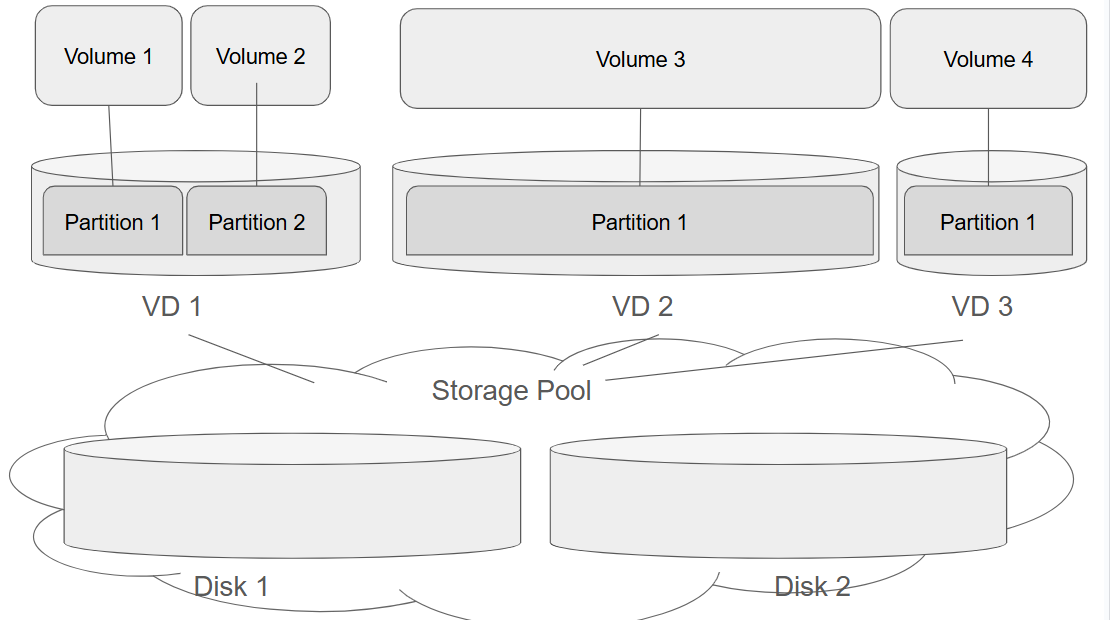
Figure 5. A sample Storage Spaces. 2 Physical Disks are inStorage Pool, and 3 Virtual Disks are created atop of Storage Pool.Virtual Disks can be partitioned like any other disks.
History
Key Milestones
- Windows Server 2012 / Windows 8 – Initial release; introduced features like storage pools, virtual disks, and resiliency options (simple, mirror, parity).
- Windows 8.1 / Windows Server 2012 R2 – Added tiered storage, allowing high-performance SSDs and high-capacity HDDs to be combined in a single pool.
- Windows 10 / Windows Server 2016+ – Improved reliability, performance, and management, including support for automatic tiering, and thin provisioning. Data migration allows to move data between physical disks, and remove physical disks from the pool on-the-fly.
- Storage Spaces Direct (S2D) – A modern evolution for hyper-converged infrastructures; allows pooling of local disks across multiple servers into a single resilient storage system. Used in clustered environments.
Design and Features
Storage Spaces allows users to pool several disks into a singleStorage Pool. Whenever a disk is added to a pool, it is formatted byWindows to work as a Storage Spaces physical disk. Windows hides thephysical disks added to the pool from users and applications.
Atop of storage pool, several virtual disks (also called “spaces”)can be created.
A virtual disk can be configured as simple, mirror, or parity. Theconfiguration defines how storage space is mapped between a virtualdisk and physical disks comprising the storage pool.
Thin provisioning
Storage spaces support thin provisioning. Thinprovisioning is a storage management technique where the operatingsystem allocates virtual disk space on-demand rather than reservingall physical storage upfront. In other words, the virtual disk canappear larger than the physical storage currently available.
For example, a virtual disk (Storage Space) is created with aspecified size, e.g., 10 TB.
Initially, only the actual physical storage used by data isconsumed from the storage pool.
As more data is written, StorageSpaces dynamically allocates additional physical space from the pool.If the storage pool runs out of physical space, writes will failuntil more storage is added. A new physical disk can be added to thestorage pool on-the-fly to increase the provisioned storage size.
Multicolumn
Multicolumn is a configuration option in StorageSpaces that controls how data is striped across multiple physicaldisks within a virtual disk. Essentially, it defines the number ofstripes (columns) used for each write operation in a storage pool.The number of columns determines how many physical disks participatein storing each stripe: More columns → data spread across moredisks → better parallelism and performance.Fewer columns → data spread across fewer disks → less parallelismbut may use less physical disks for small pools.
Mirroring
Storage Spaces can maintain multiple copies of dataon different physical disks within a storage pool to provide faulttolerance. This feature ensures that if one or more disks fail, yourdata remains safe and accessible.
When creating a mirror virtual disk, you can specify the number ofcopies:
- Two-way mirror: Two copies of every piece of data on two different disks
- Three-way mirror: Three copies of every piece of data on three different disks
Storage Spaces automatically writes the data to multiple diskssimultaneously.
If a disk fails, Storage Spaces reads theremaining copy(s) to serve data to the OS without interruption.
Parity
Parity in Storage Spaces is a method of providing fault toleranceby storing redundant information (parity data)across multiple disks. Instead of duplicating all data likemirroring, parity uses mathematical calculations to reconstruct datain case of a disk failure. Parity requires an extra disk to keepparity information. Usually parity uses less disk space than fullmirroring because only parity (not full copies) is stored.
Addition and removal
Physical disks can be dynamically added or removedfrom a pool. Storage Spaces updates the storage pool metadata toinclude the new disks. Also a disk can be retired and removed from apool. Data that exists on the retiring disk is rebuilt onto otherdisks in the pool to maintain consistency and redundancy: data on theretiring disk are duplicated onto other disks, and (if required)parity is recalculated.
Tiering
Tiering is a feature in Storage Spaces thatcombines different types of storage media—typically high-speed SSDsand high-capacity HDDs—into a single storage pool. The systemautomatically moves frequently accessed (“hot”) data to fasterstorage and less-used (“cold”) data to slower storage.
Types of Virtual Disks
Implementation Details
Each physical disk in a pool has a small “metadata” area,which has all the data regarding the storage pool configuration,virtual disks, and mappings between physical disks and virtual disks.Each physical disk contains information regarding the whole pool, andmetadata is mirrored across all the physical disks in a pool.
Disk space on physical disks added to the storage pool is dividedinto slabs. A slab is the fundamental allocationunit of capacity used inside a Storage Spaces pool. Instead ofmanaging storage at the block or file level, Storage Spaces organizesphysical disk space into large, fixed-size chunks—called slabs.
- Each slab is typically 256 MB in size.
- Slabs are assigned to physical disks within the storage pool.
- Virtual disks are constructed by mapping many slabs across multiple disks.
Slabs work in the following fashion:
- When data is written to a thin-provisioned virtual disk, Storage Spaces selects free slabs from the pool.
- For mirrored or parity spaces, corresponding redundant slabs are placed on different disks.
- Metadata keeps track of which slabs belong to which virtual disk.
The fact that data is stored in slabs has some side effectsresulting in non-optimal use of disk space. Over time, writes,deletes, expansion, tiering, and disk removal can leave slabs:
- Unevenly distributed
- Partially used
- Stranded on specific disks
- Fragmented across the pool
This reduces efficiency even if total free space seems sufficient.Defragmentation in Storage Spaces means reorganizing slab placement,also called “slabify”.
“Slabifying” refers to the process of reorganizing storage so:
- Data is stored in aligned, full slabs
- Free space becomes whole, unallocated slabs
- Storage pool metadata accurately reflects slab boundaries
The notification from the filesystem or defrag utility to free upa slab is called TRIM. On TRIM, Storage Spacesmarks the related slabs as free inside the pool, and can be reused.It also passes TRIM down to SSDs if applicable, as SSDs make use ofTrim for performance optimizations.
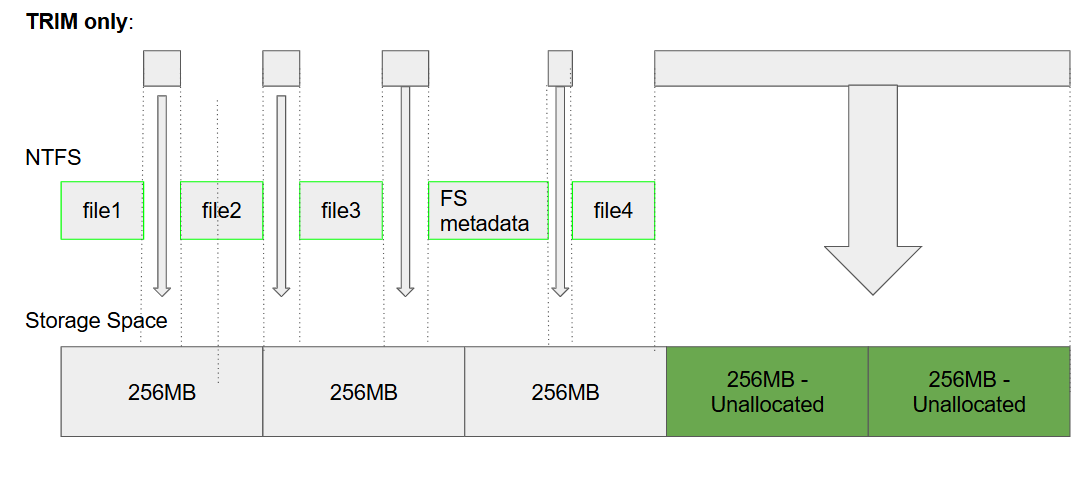
Figure 6. TRIM deallocates contiguous 256MB slabs in StorageSpace. But it cannot deallocate smaller free space areas as theydon’t fit into slab division.
Windows is configured to run Slabify optimization under aschedule, or can be launched manually via `Optimize-Volume`powershell cmdlet, or with `defrag.exe /K /L` command.
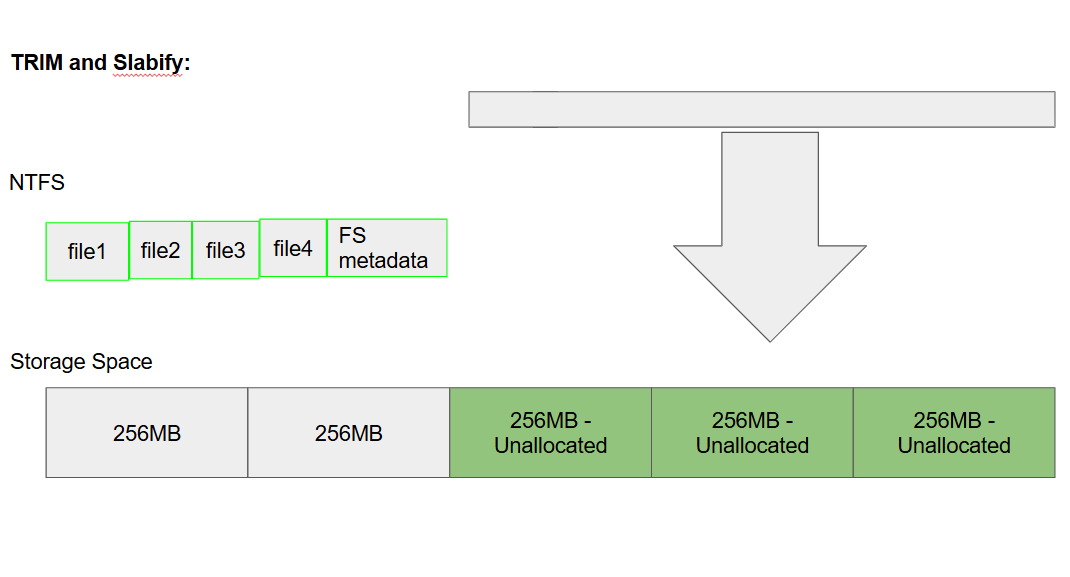
Figure 7. Slabify ensures the files are packed to the slabboundary, hence TRIM can deallocate more space.
A small addition: Hybrid Configurations
There are very few use cases when you may actually want to use ahybrid configuration, but just in case you are curious… can wecombine LDM and Storage Space? Yes, it’s possible!
As Storage Spaces are disk-based, and LDM is volume-based, thereis a possibility to combine them in the following way:
- Pool several physical disks
- Create several virtual disks
- These virtual disks will appear as normal disks in the system and legit disks to LDM
- Convert disks to dynamic. LDM will create its metadata and volumes atop of virtual disks.
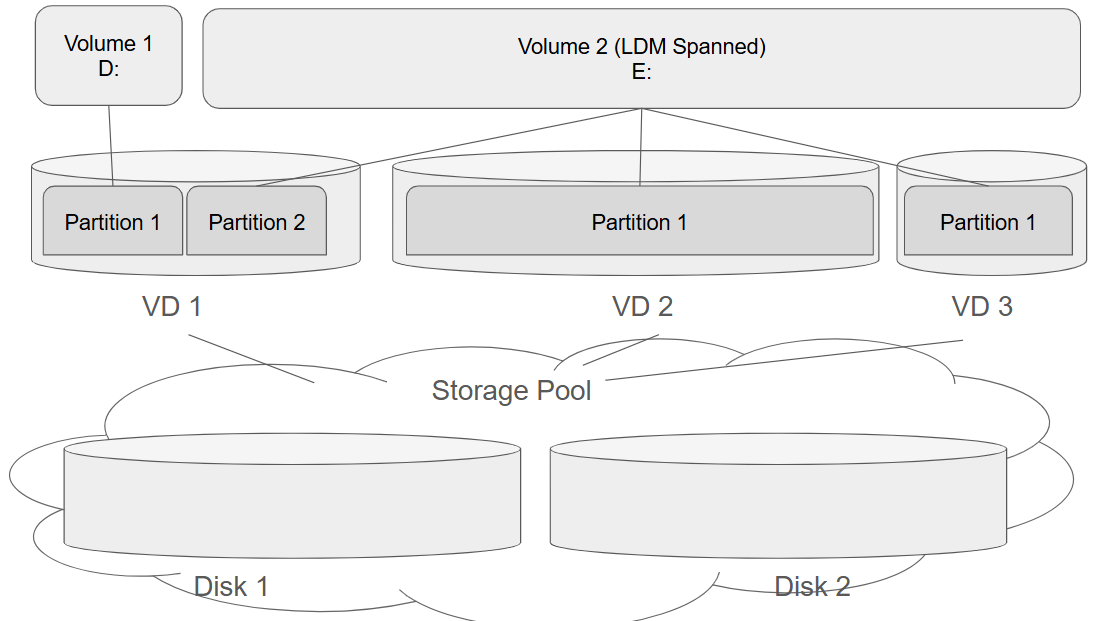
Figure 8. An example of LDM Spanned volume E: built atop ofpartitions created on Storage Spaces.
Wrapping up
This concludes our two-part series on the basics behind blockstorage in Windows. If you’re interested in learning more about block storage and how to optimize it in the cloud, check out this on-demand webinar.
Table of Contents
Sign Up